
Overview
Teaching and Learning Innovations has created Starter Kits for items that faculty can import, edit, and customize in your own courses. This article lists some of those items and includes step-by-step instructions to locate and import them.
Useful Canvas Starter Kits
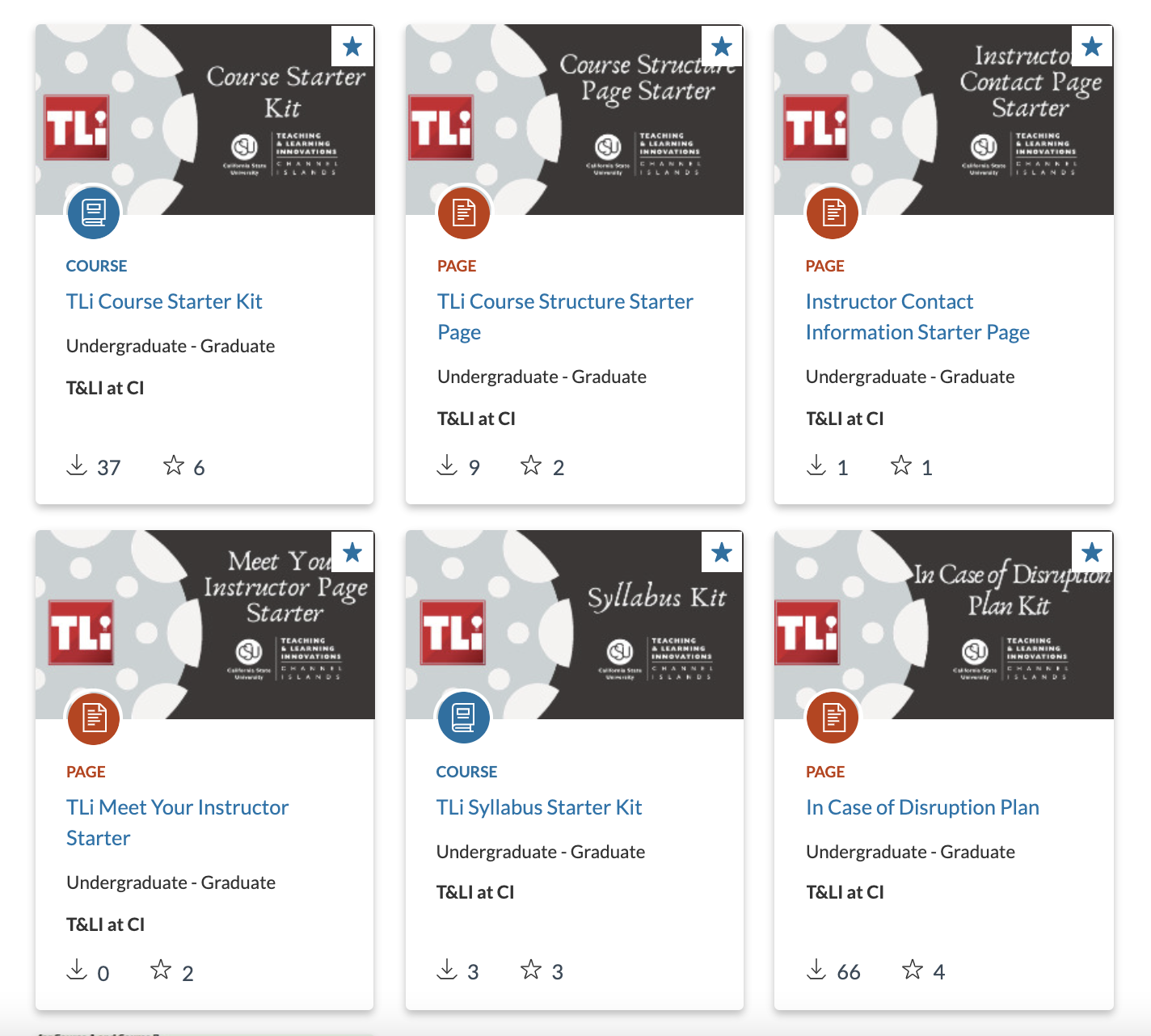
Previewing the Kits
To view the kits before importing, login to CI Learn (Canvas) from your MyCI Dashboard. Select ‘Commons’ from the global navigation menu. Search “TLi Starter.” Below are links to each kit. You may be prompted to login with your MyCI Credentials if you are not already logged into CI Learn.
- Course Starter Kit
- Syllabus Kit
- Meet Your Instructor Page Starter
- Instructor Contact Page Starter
- Course Structure Page Starter
- In Case of Disruption Plan
How to Locate Templates from Canvas Commons
- Log in to myci.csuci.edu.
- Click CI Learn.
- In the red menu bar on the left-hand side of the page, click Commons.
- Use the search field to type key words about what you are looking for (e.g., CSUCI Zoom).
- Recommended search terms: CSUCI + [topic] (e.g., CSUCI Overview)
- You can click on the item title to open and see a preview/description.
- If you wish to import the item into your course, click the blue Import/Download button.
- Click the checkbox next to the course(s) into which you would like to import the Commons content.
- Click Import into course. You can then return to your course while the download completes. Once the content has been imported, you can edit it as you would any other Canvas item.
