
Starting with classes in the Spring 2022 semester, there is a new integration between Zoom and Sharestream that allows class sessions that are scheduled within Canvas and then recorded to the cloud, to be automatically transferred into the course’s Sharestream collection. This integration will remove the need for downloading and uploading cloud recordings into Sharestream. Cloud recordings that are pushed into Sharestream will also automatically include closed captions and the ability to download chat files if those features were enabled within the Zoom meeting. And, since Sharestream is already integrated into Canvas, embedding a Zoom cloud recording into pages and modules is seamless.
What is ShareStream?
ShareStream is a video streaming platform that can be used to add video content to classes in CI Learn. It functions much like YouTube except that it’s private to CSUCI and your content remains behind CSUCI’s single-sign-on.
Take a look at our Adding Media to Modules and Content Pages article for help with adding ShareStream media into your Canvas course.
Installing the Sharestream App from the Zoom Marketplace
- Go to the Zoom Marketplace and click the Sign In link in the upper-right corner.
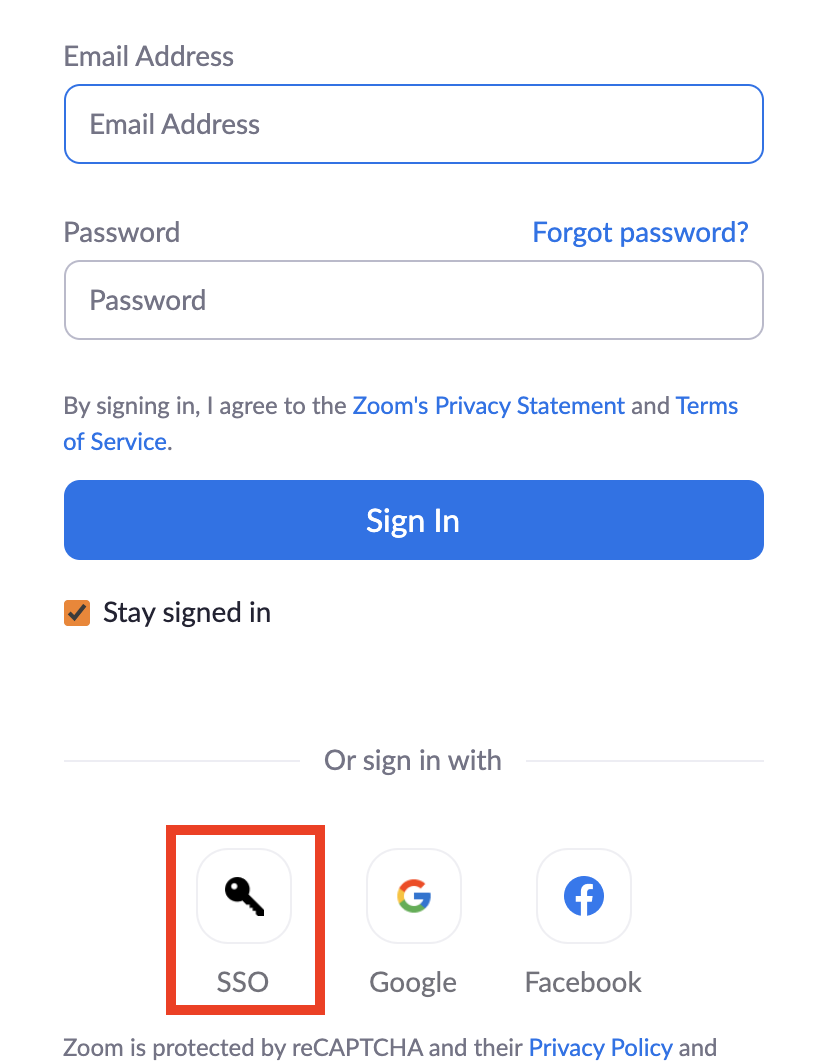
- Click the SSO option under the email and password fields.
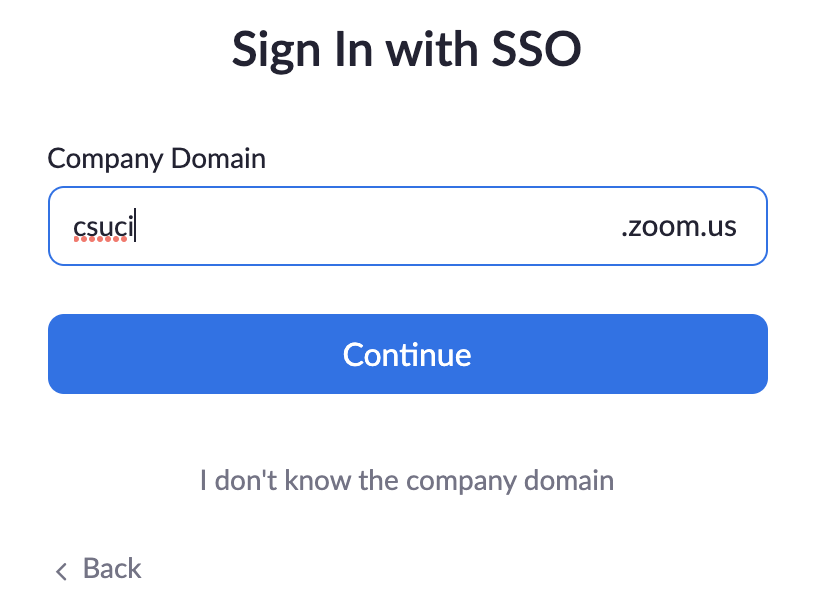
- Type csuci in the ‘Company Domain,’ field and click the Continue button.
- Enter your myCI credentials and sign in as you usually do. This will connect you to the Zoom Marketplace with your CSUCI Zoom account.
- Search for ‘Sharestream,’ in the search field and click the app in the search results to be taken to the ShareStream/Zoom App installation page.
- Click the Visit Site to Install button.
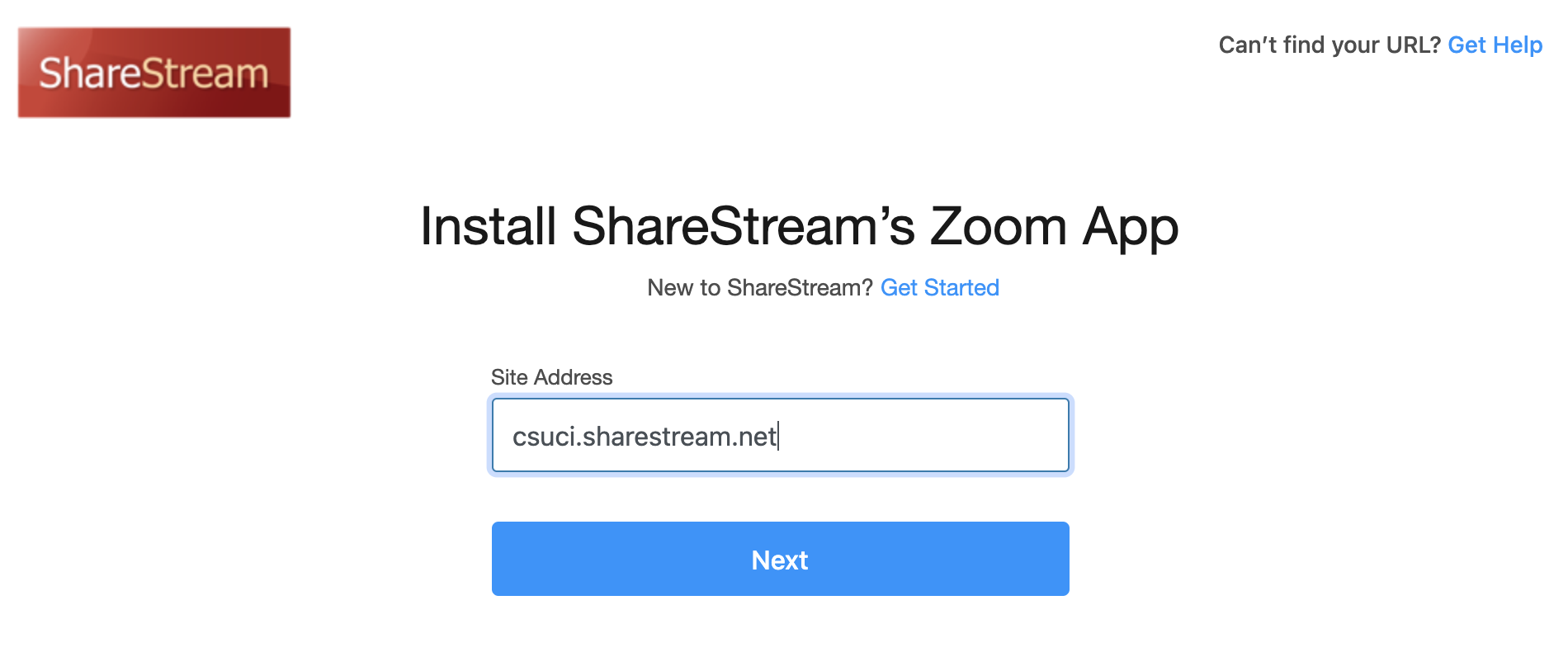
- Type csuci.sharestream.net in the ‘Site Address,’ field, then click the Next button.
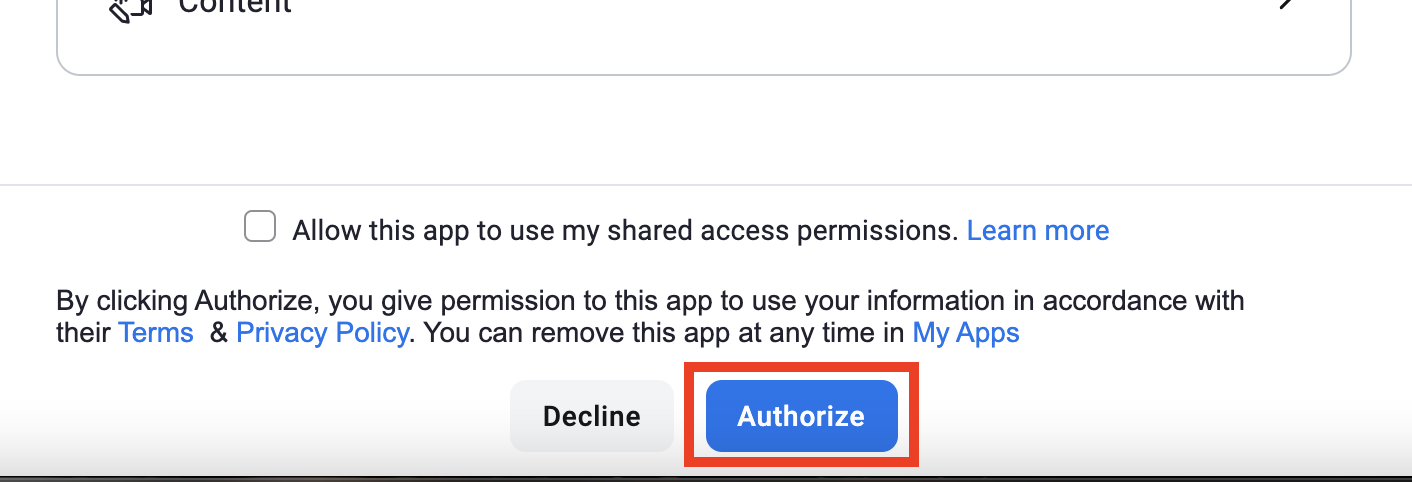
- You’ll be redirected to the app installation page. Click the Authorize button at the bottom of the screen to authorize the app.
- After you’ve authorized the app, you’ll see a success screen. You can then close the tab in your browser.
