Faculty and students at CSUCI are provided with Adobe Spark Premium accounts. This guide will walk you through how to log into Adobe Spark from your computer or mobile device using your myCI credentials.
Logging Into Adobe Spark from a Computer
To login to the Adobe Spark web application on your computer, open up a web browser and go to spark.adobe.com. This will take you to the Adobe Spark landing page.

To begin the sign-in process, choose either the “Log in” or “Start now” button on the top right hand corner of the page. They will both take you to the Adobe Spark Login screen.

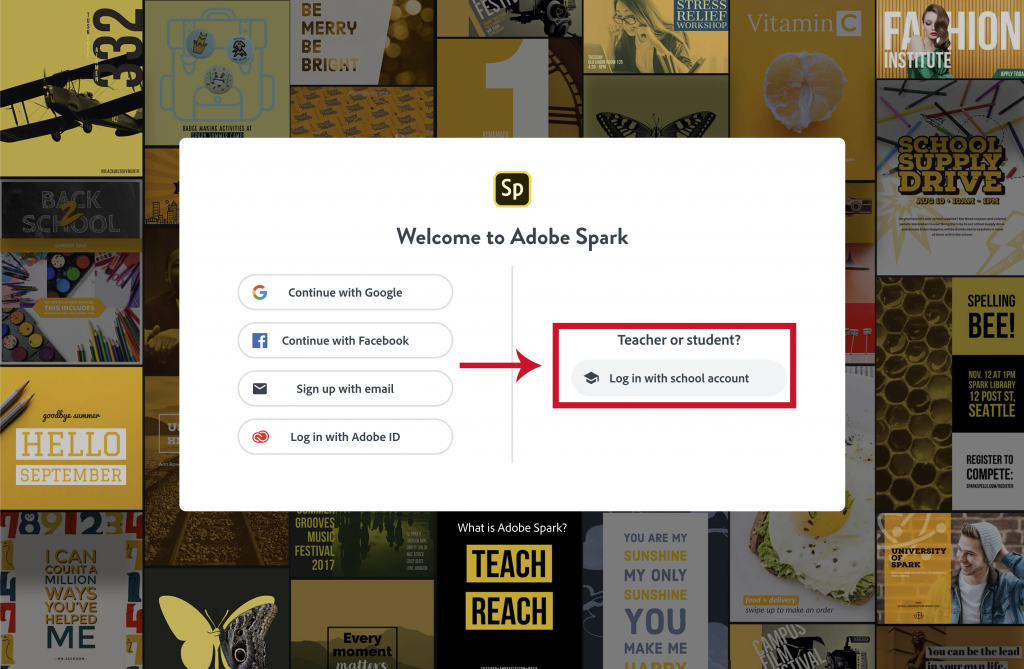
Once you are at the Login screen, you will be presented with different options to access your Adobe account. Choose the “Log in with school account” button on the right hand side of the screen under the “Teacher or Student?” category. This will take you to the Adobe Spark for Education Login Page.
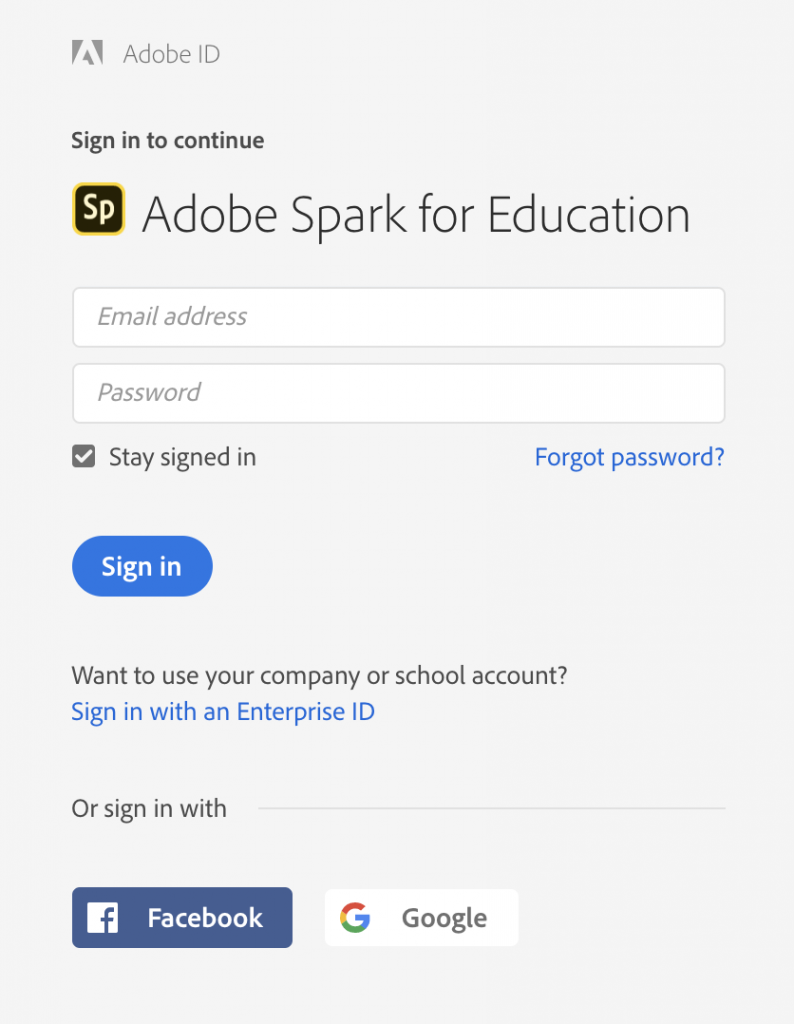
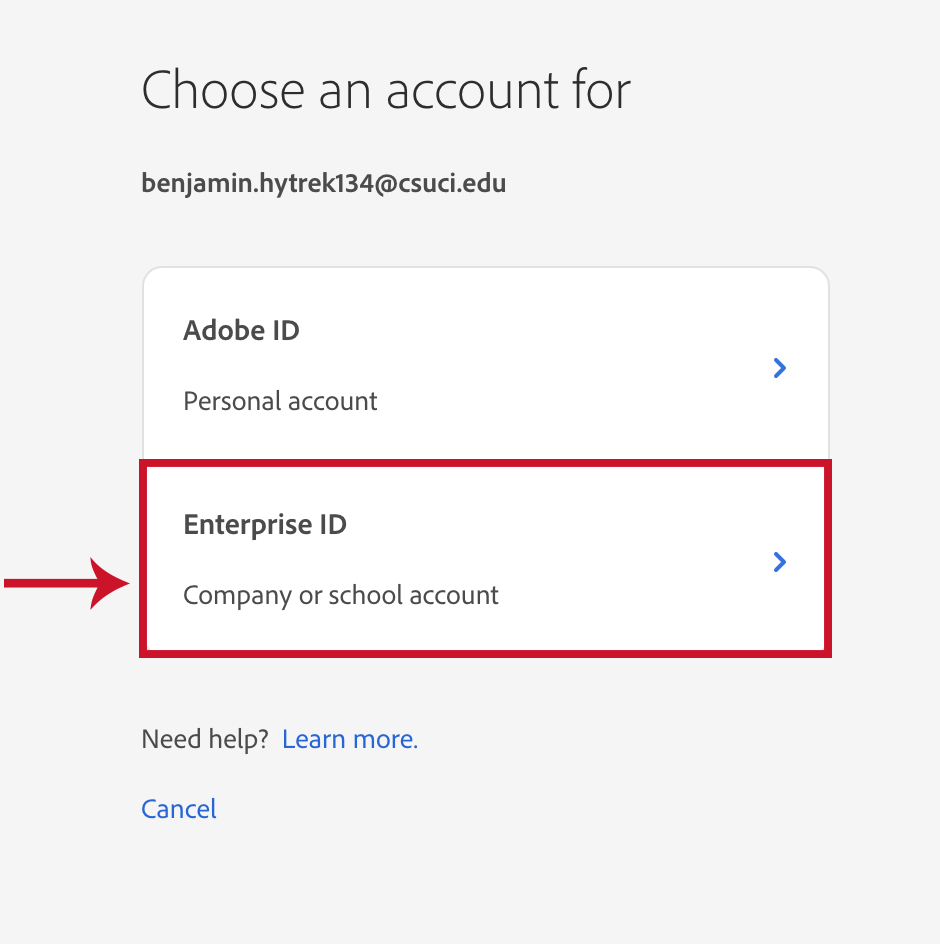
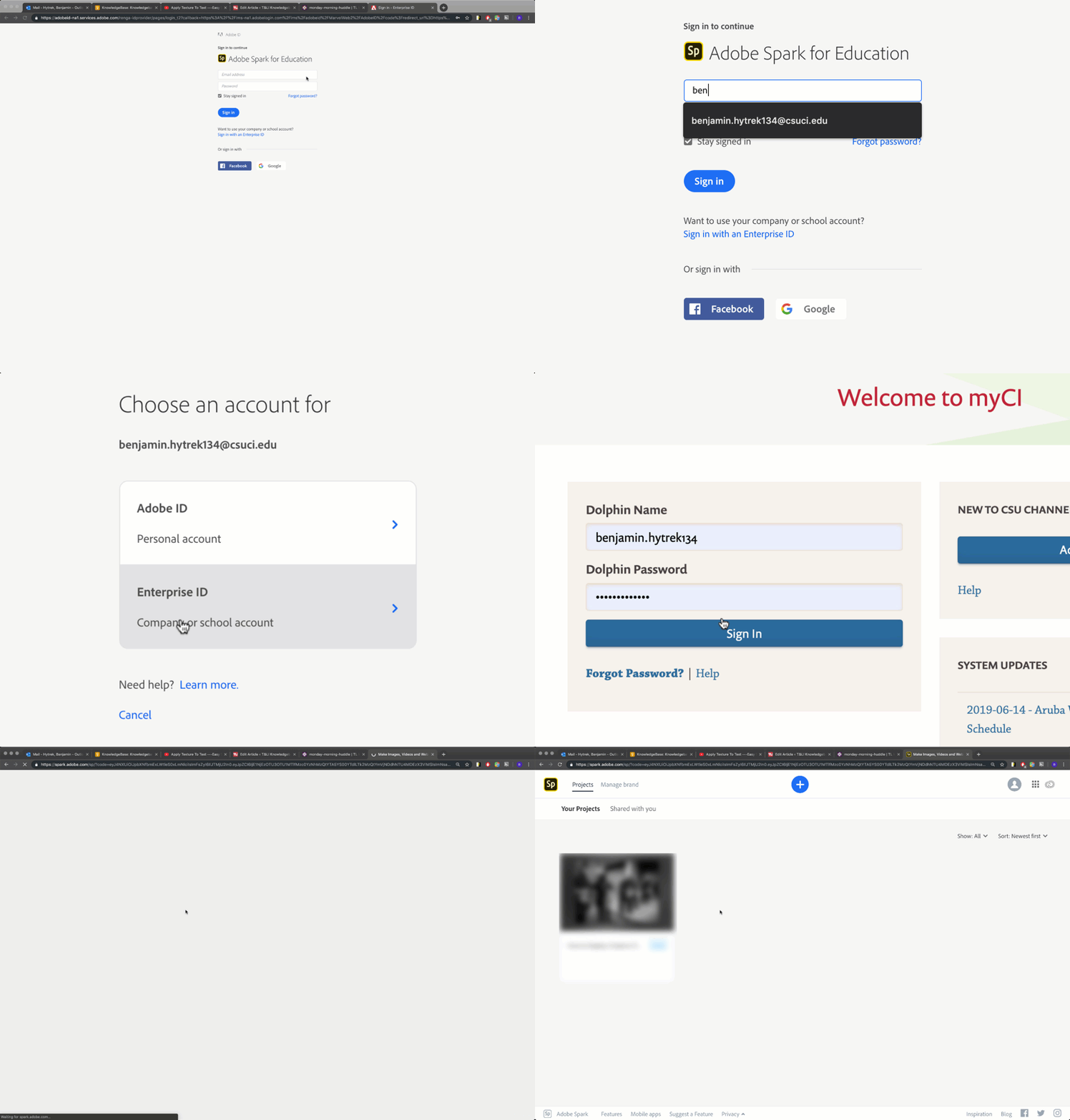
The Adobe Spark for Education Login Screen will ask you to provide an e-mail address and password to login. Since you will be using your Enterprise ID to access Adobe Spark, begin with entering the email address associated with your CSUCI Outlook account that ends with “@csuci.edu” for faculty and “@myci.csuci.edu” for students. This will automatically redirect you to the Enterprise ID screen. Choose the “Enterprise ID” button from the two button options on the page.
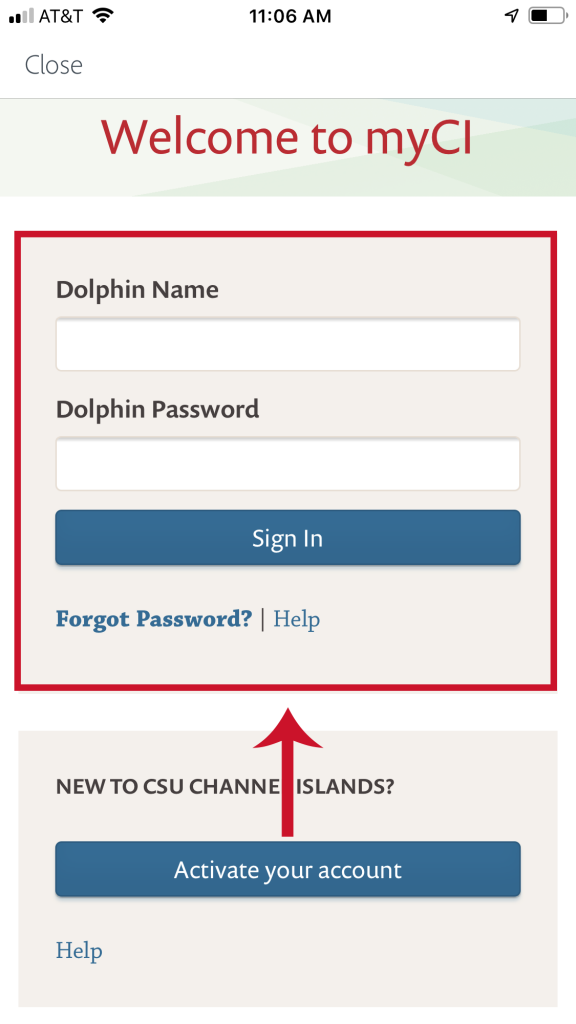
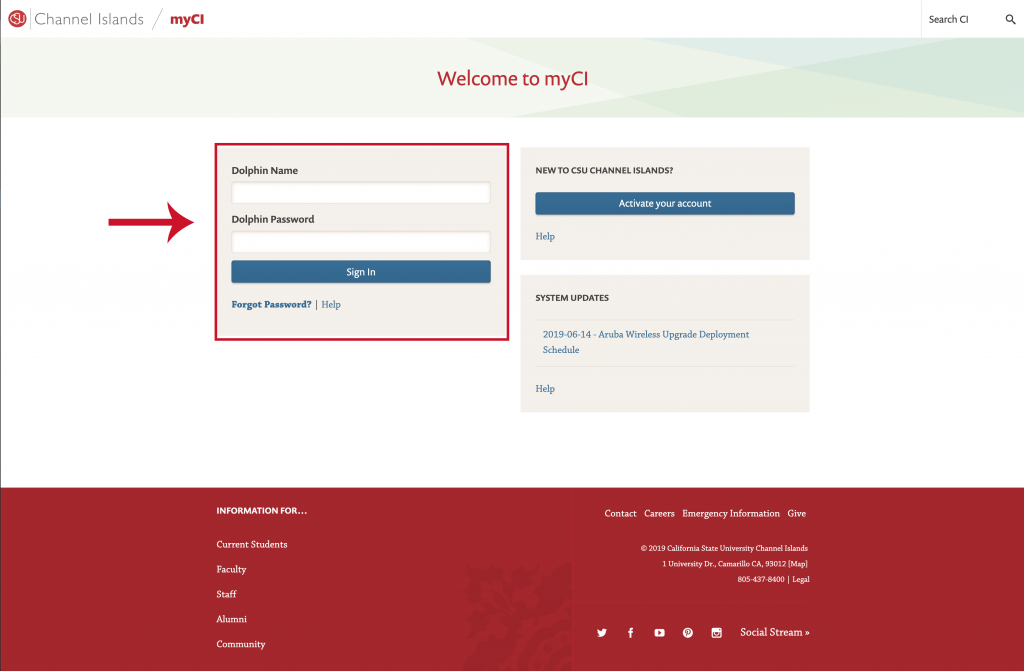
This will take you to your myCI Account Login Screen where you can enter your school account login credentials, just like if you were logging into your regular myCI homepage. Once you have entered you Dolphin Name and Dolphin Password (same login credentials you use for myCI), click on the “Sign In” button. You will be redirected to the Adobe Spark web app and have full access to start creating on your school account.
Here is an animated example of the login process to help you understand how the Enterprise ID login steps look in order, starting from the Adobe Spark for Education Screen.
Logging Into Adobe Spark Mobile Applications from a Mobile Device
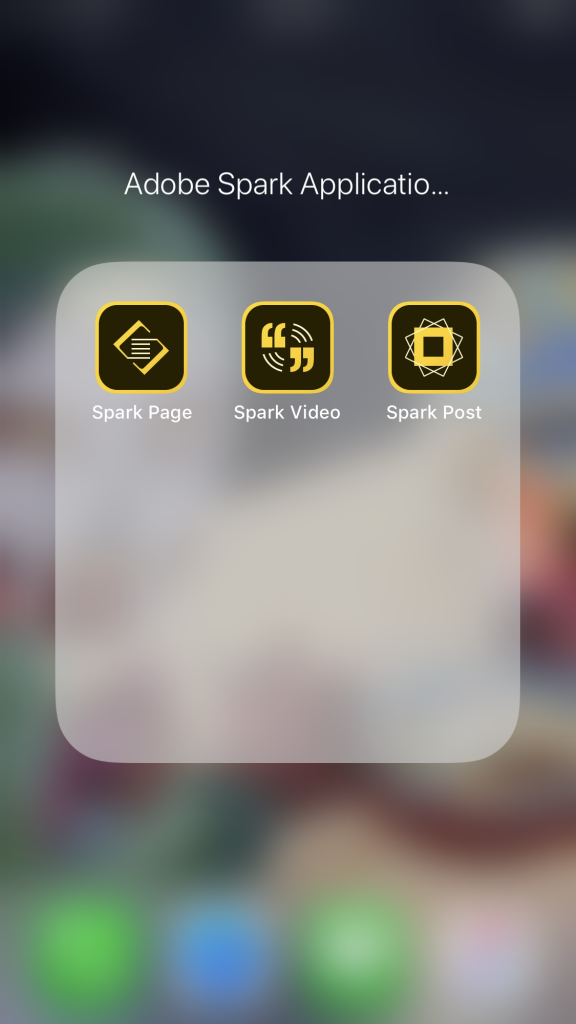
Adobe Spark is broken up into three separate applications for iOS devices; Spark Page, Spark Video, and Spark Post. Currently, only Adobe Spark post is supported on Android devices. Each one of these applications has the exact same sign in process as each-other as well as mirroring the exact steps as the Enterprise ID sign in process for the Adobe Spark web application.
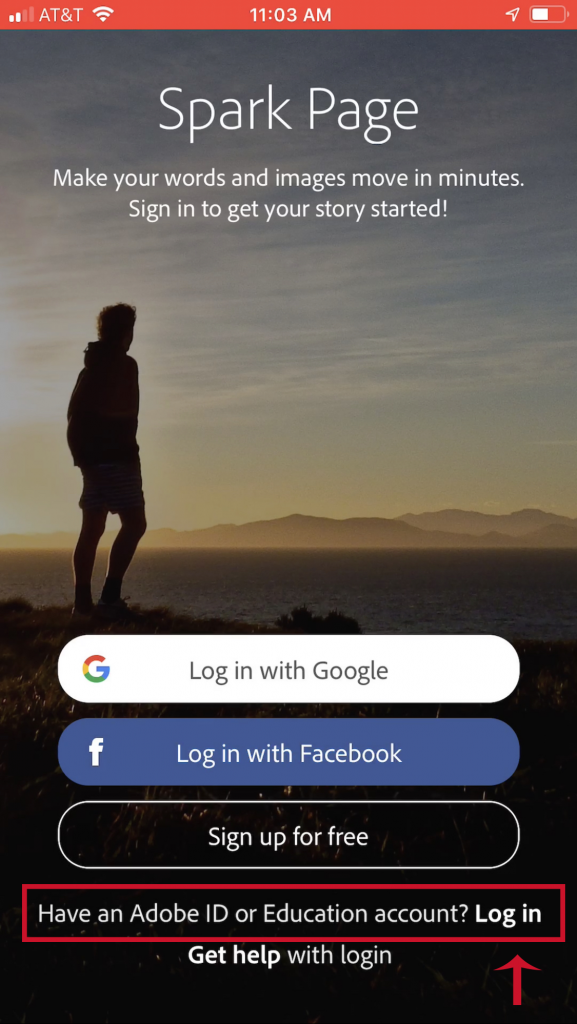
To log into a mobile Spark application, click on the app you wish to sign into. If you have not logged into the app before, the app will open up the Spark Mobile App Login Screen. Choose the “Log in” option next the “Have an Adobe ID or Education Account?” prompt at the bottom of the login screen to access the Adobe Spark for Education Login Screen.
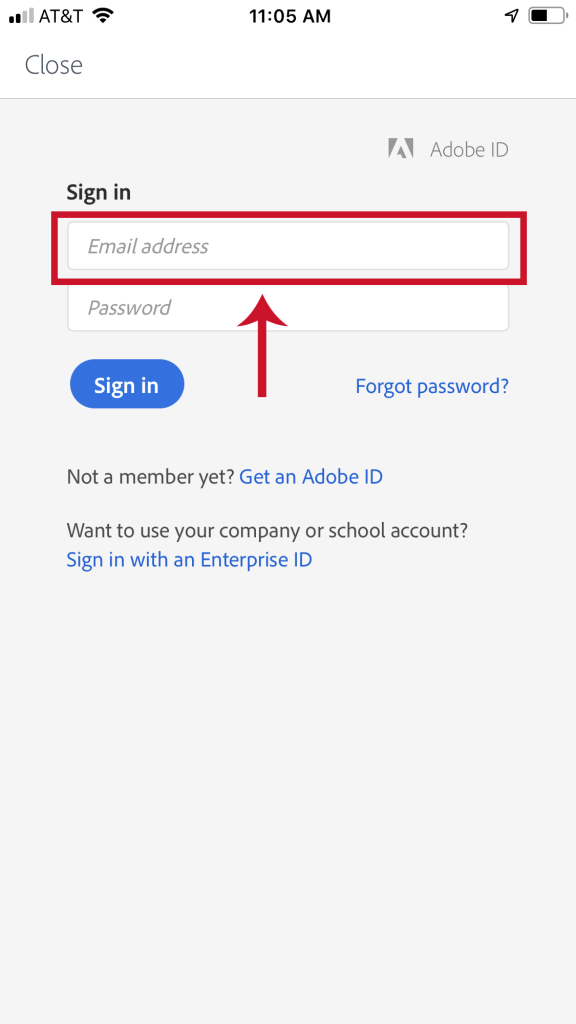
The Adobe Spark for Education Login Screen will ask you to provide an e-mail address and password to login. Since you will be using your Enterprise ID to access Adobe Spark, begin with entering the email address associated with your CSUCI Outlook account that ends with “@csuci.edu” for faculty or “@myci.csuci.edu” for students (the account formatted like ‘first.lastname@csuci.edu’). Once you have entered in your email, click on the password box, this will automatically redirect you to the Enterprise ID screen.
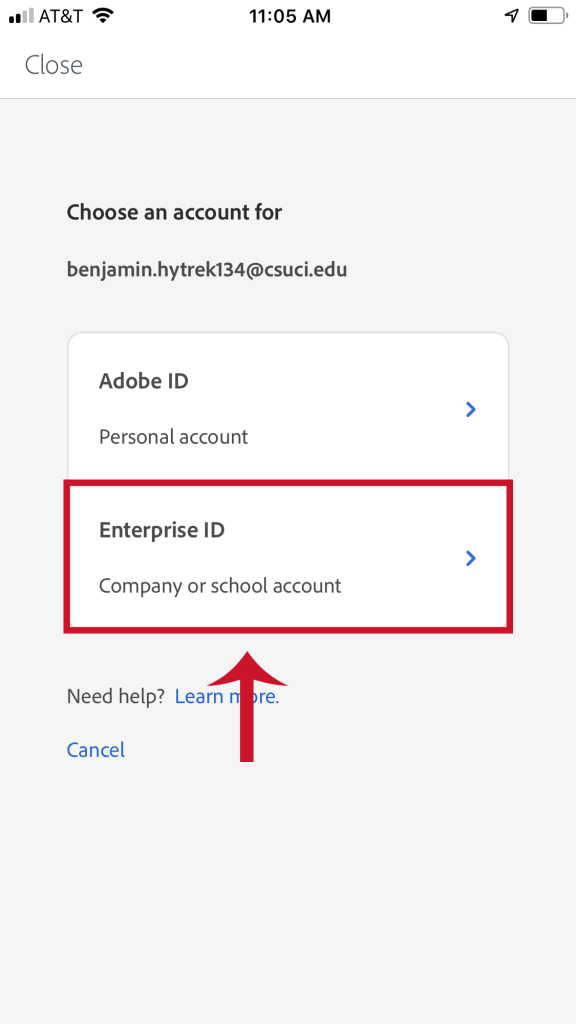
Choose the “Enterprise ID” button from the two button options on the Enterprise ID screen. This will take you to your myCI Account Login Screen.
On the myCI Account Login Screen, enter your school account login credentials, just like if you were logging into your regular myCI Homepage. Once you have entered you Dolphin Name and Dolphin Password (same login credentials you use for myCI), click on the “Sign In” button. You will be redirected to the Adobe Spark app and have full access to start creating on your school account.