
This guide will walkthrough how to add media to a module and a content page in your CI Learn course. These steps assume that you have already uploaded the media that you want to add to your module or page. If you haven’t uploaded media yet, view our batch upload guide first.
Adding Media to Module in CI Learn
- From within your course, click the Modules link on your course menu, then navigate to the module you’d like to add media to and click the plus icon (+) across from module name to open the Add Item to.. window. Once it opens, select External Tool from the dropdown menu.
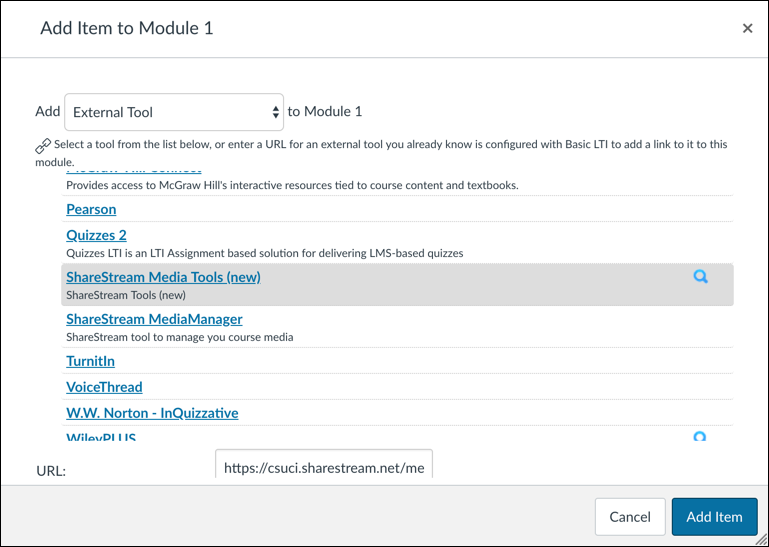
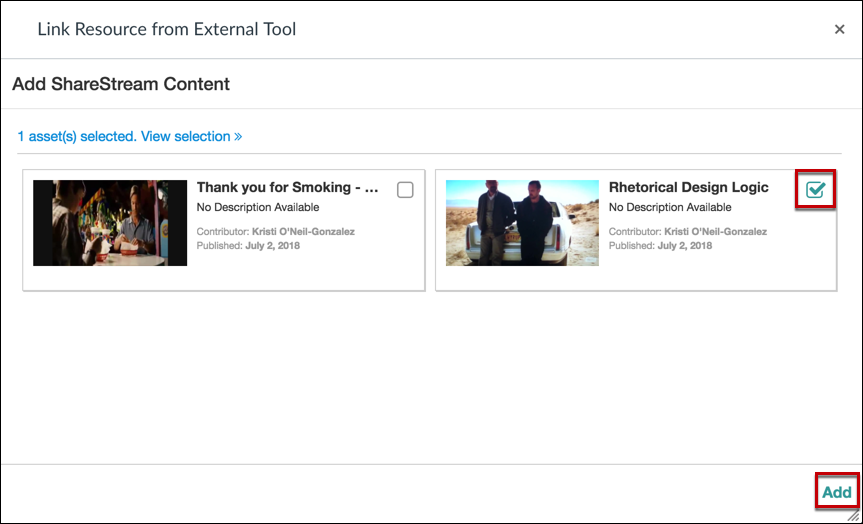
- Scroll down through the list until you see ShareStream Media Tools (new). Click it to open the Add ShareStream Content window. Click the checkbox next to the file you’d like to add and click Add.
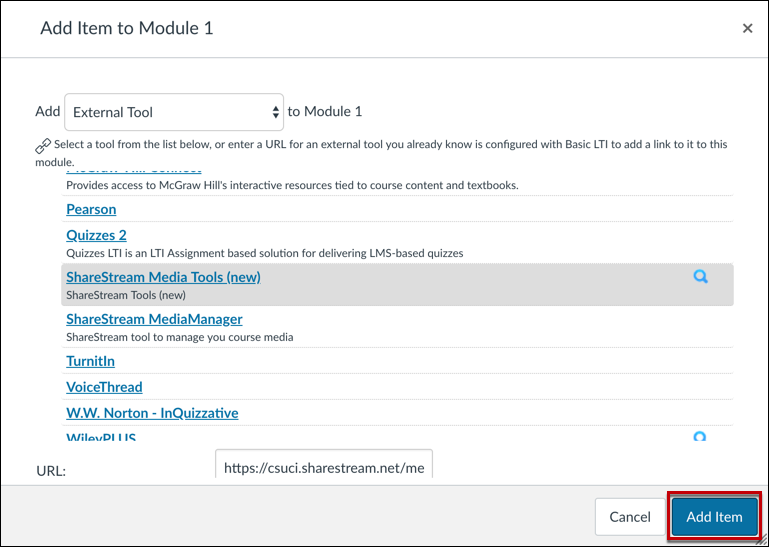
- You will then be taken back to the ‘Add Item to…’ window. Click Add Item at the bottom of the window.
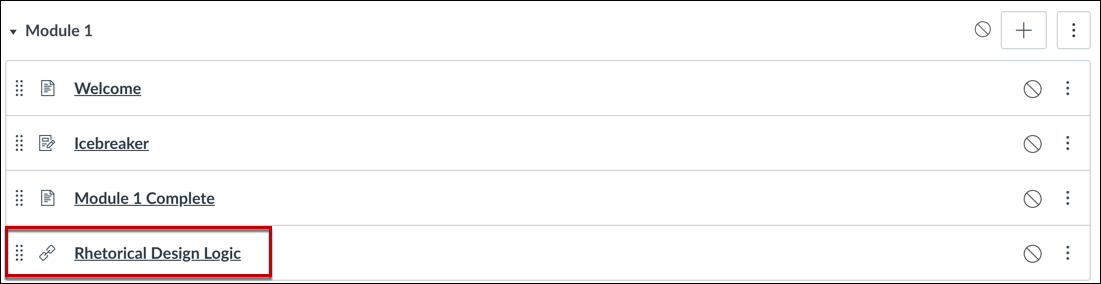
- The video has now been added to the end of your module and can be reordered as needed.
Adding Media to a Content Page in CI Learn
Enter the Rich Content Editor (RCE) of one of the pages or assignments within your course. At the top of the RCE will be a menu of icons that are used for creating/editing content within your page. Position your mouse within the RCE where you would like your video to be inserted.
Next, Click on the Apps Icon which will be represented by an icon that looks like an electrical power plug. This will pull open a small drop-down menu, which will show you your most recently used apps, if ShareStream is not listed in this dropdown, click on the “View All” Prompt within the dropdown menu.
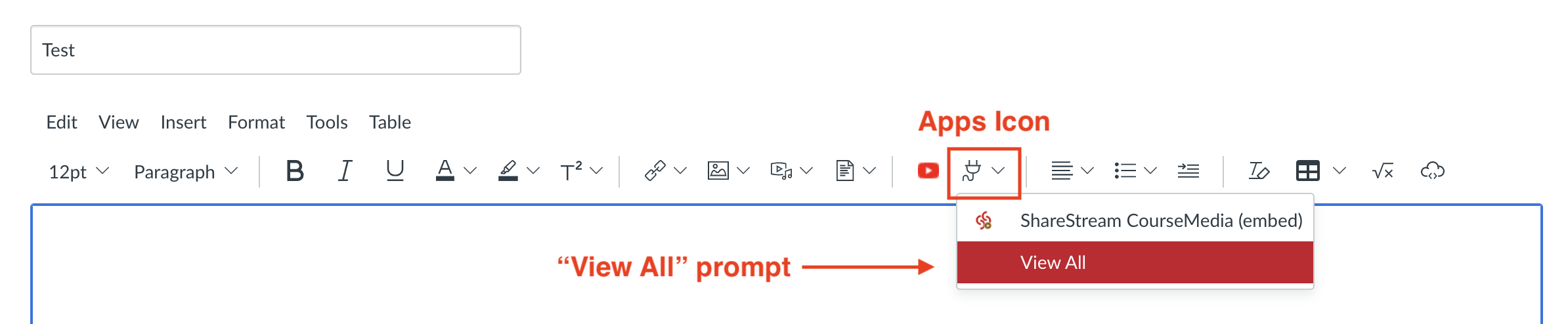
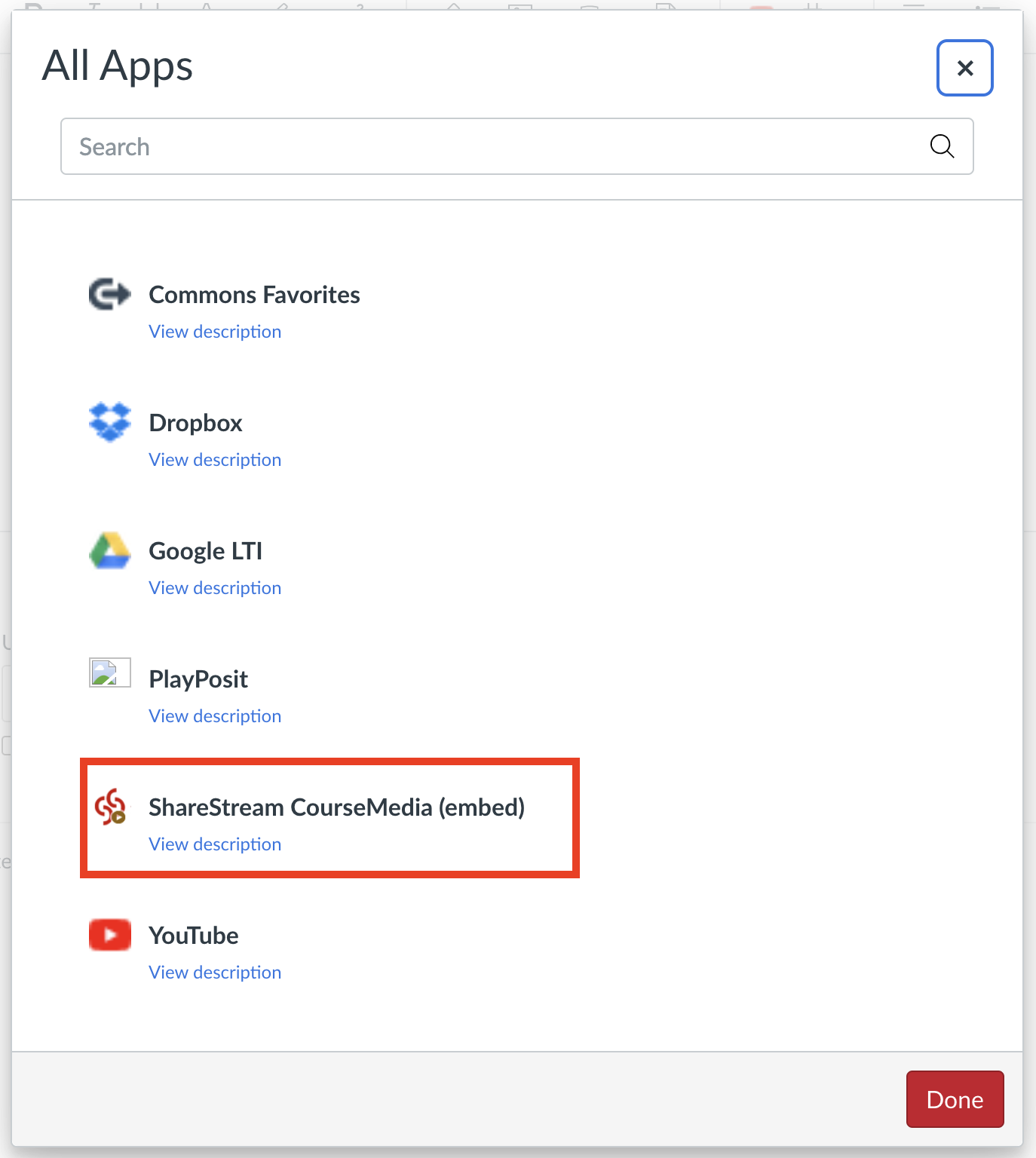
Clicking on the “View All” Prompt will pull open the All Apps Pop-Up Menu with a list of all the external applications that can be used within your Canvas course. Select ShareStream CourseMedia Embed from this list.
Once the ShareStream CourseMedia Embed window opens, click the checkbox next to the file you’d like to add and click Add. 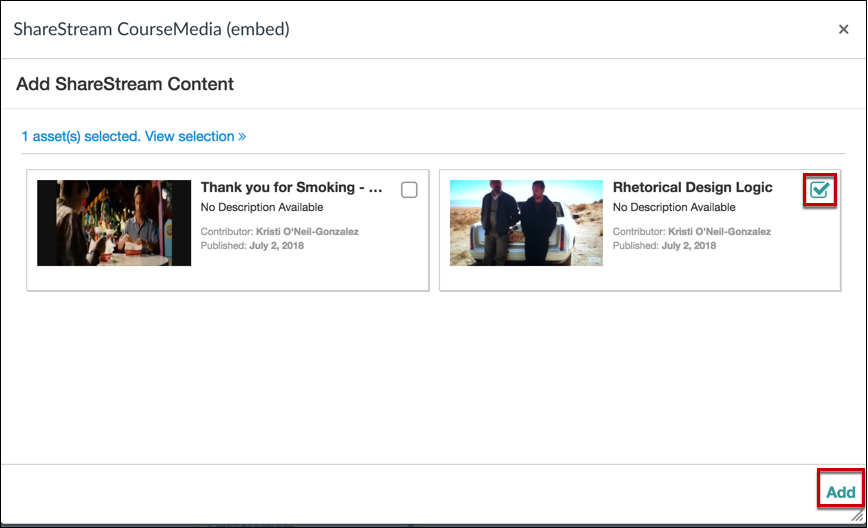
The video will then be added where your cursor was positioned. Once you are happy with the page, click Save or Save and Publish.
