
This guide will walk you through how to copy your ShareStream media from a previous course into your new CI Learn course.
Enabling ShareStream in CI Learn
- From within your course, click Settings on the course menu and then select Navigation from the tabs at the top of the page.

- Next, scroll down until you see ShareStream Pick-n-Play (new), click the stacked dots to the right, and click Enable. Lastly, click Save at the bottom of the page to add it to the course navigation.

Course Media Copy Wizard
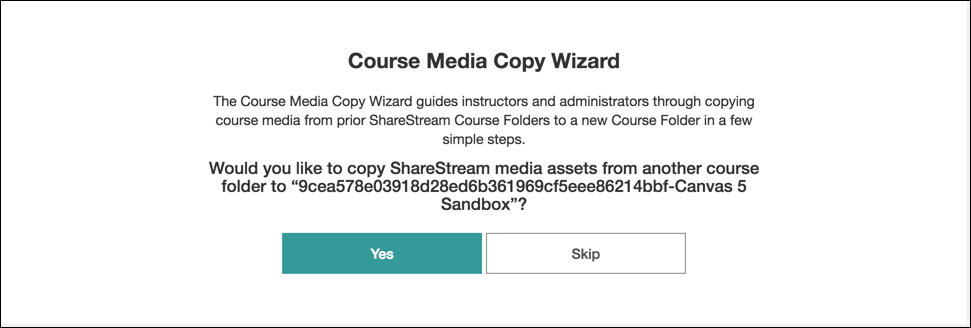
The first time you click on ShareStream Pick-n-Play (new) from the course menu* you will be prompted with the Course Media Copy Wizard.
* ShareStream must be enabled in CI Learn to copy media. For directions on how to enable ShareStream, refer to the Batch Upload Media to ShareStream page.
- Once the copy wizard opens, click Yes to select the course you’d like to copy media from.
- Next, you can search for your previous course or select a prior course folder. Once you have selected the previous course click the Copy button.
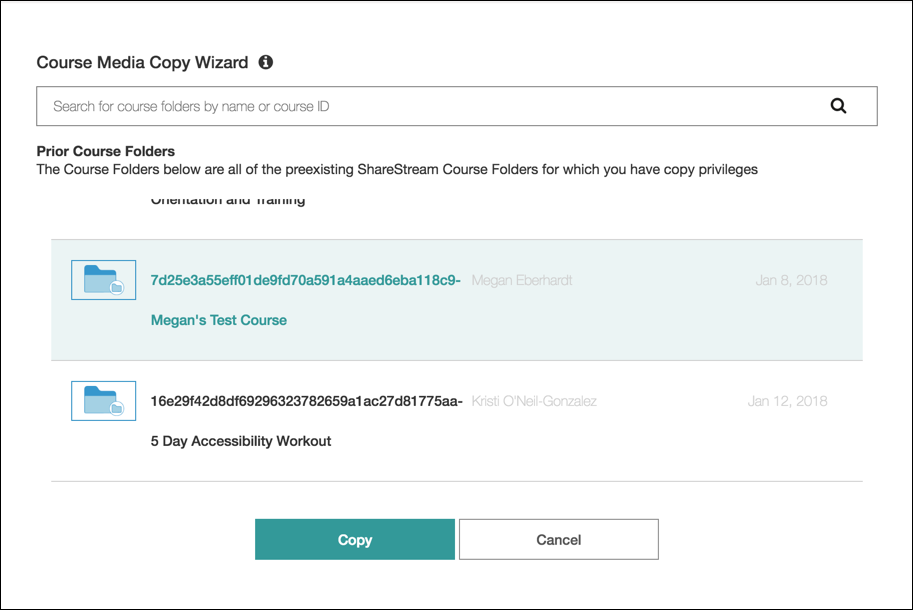
- The media from the previous course will then be copied into your new CI Learn course.
